TireBuddy Integration Guide SDK and API implementation guide

TireBuddy Integration Guide

Define the features in your app and review the matching integration steps and configuration samples for your market.

The flow is organized in implementation order, from setup and app configuration through vehicle and tire scanning, tread measurement, output handling, and final validation.

Prerequisites: This guide assumes active Anyline SDK license keys and Cloud API credentials. See License Key Generation documentation.

Define Scope

Choose the features in your app

How to use this step

Turn on only the features your app will include in the first release. The guide hides unrelated steps and shows the matching integration path and checklist below. Some options are alternatives, not add-ons. Choose the flow that matches your app.

Select your platform

Platform-specific references update below. Android and iOS native documentation stays visible for both platforms.

Select your main market

License plate, VIN validation, and DOT or TIN defaults vary by region. The labels below update the guide immediately.

Vehicle identification

Choose the vehicle-identification flow for your app.

Use OCR when your app needs only VIN OCR. Switch to OCR + barcode when your app needs the VIN scanned via barcode and OCR.

Tire diagnostic

Choose the tire diagnostic flow for your app.

Use Production date as the default for most integrations. Switch to Full DOT only when a workflow needs the complete DOT / TIN string.

Integration map This diagram updates from the selected features, region, and options.
2
Foundation

Initialize SDKs and set up authentication

Initialize each SDK

  • Initialize Tire Tread SDK first, then Mobile SDK.
  • Do both once, early in the app lifecycle.
  • Do not re-initialize on normal foreground and background transitions.
  • Only re-run setup if credentials changed or the initial attempt failed.

Set up cloud authentication via Auth Proxy

  • For production, keep your client credentials off-device and use a backend-managed token flow.
  • We recommend authenticating through the Anyline Auth Proxy to obtain a Bearer token for Cloud API features (Tire Sidewall, Odometer, Enrich).
  • Request a token by calling:
    POST https://auth-m2m.anyline.com/api/token?api=<your-api-identifier>&client=<your-client-id>
    The response contains an access_token to use as a Bearer token in subsequent Cloud API calls.
  • Tokens are valid for 24 hours. Cache the token and request a new one only when it has expired; do not fetch a new token on every scan or session.
Auth Proxy request examples
# Get Auth0 Token (Cloud API)
@api=cloud-api
@client_id = <your-client-id>
POST https://auth-m2m.anyline.com/api/token?api={{api}}&client={{client_id}}

# Get Auth0 Token (Insight API)
@api=insight-api
@client_id = <your-client-id>
POST https://auth-m2m.anyline.com/api/token?api={{api}}&client={{client_id}}
3
App Orchestration

Correlate and link the elements of your inspection flow within the app

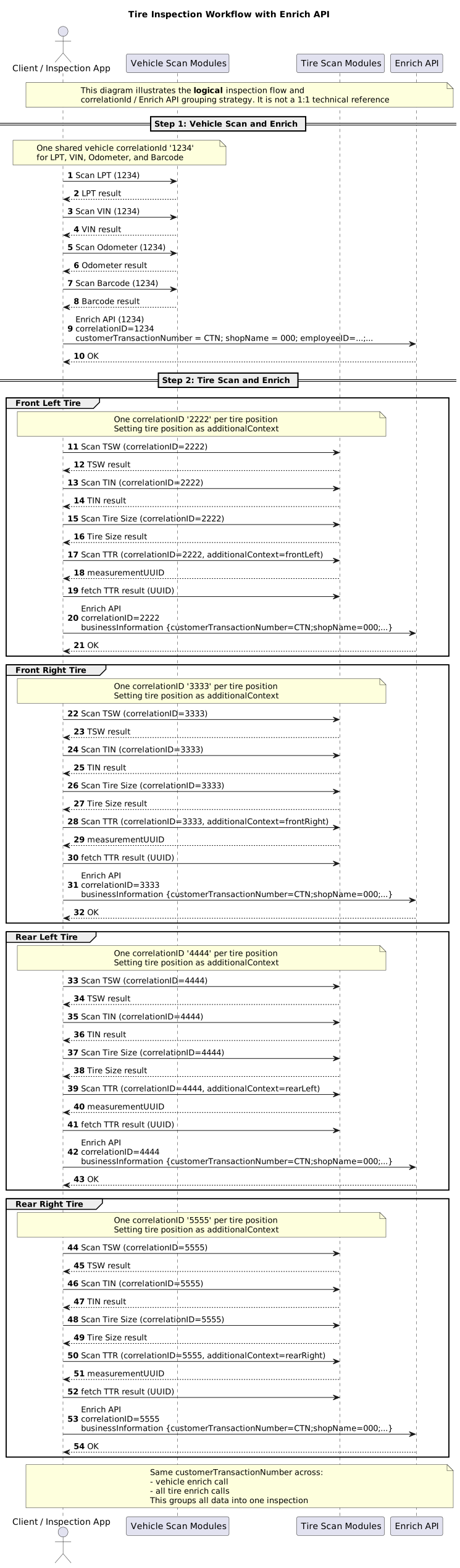
This is intentionally called out early to avoid it being overlooked. It's good practice to establish these foundations upfront. Defining the inspection structure, tire positioning, and correlation ID strategy early helps keep everything consistent later, especially for retries, asynchronous tread handling, and Enrich grouping.

App orchestration
1 inspection
Tire positions and progress
measurementUUID to tire position
Screen progression and retries
Inspection data enrichment
Shared inspection context
Per-vehicle correlation IDs
1 Enrich call per vehicle ID
Per-tire correlation IDs
1 Enrich call per tire

Vehicle Inspection Data Orchestration

This section defines app implementation, inspection correlation, and inspection enrichment.

App Implementation

Your app keeps the inspection together

Use app state to group vehicle scans, tire scans, retries, and async tread retrieval into one inspection flow.

  • Inspection session lifecycle
  • Tire position and per-wheel progress
  • Screen progression and retry behavior
  • Map every measurementUUID back to tire position for async tire tread results
Inspection correlation

Your integration tracks event relationships

This defines how your data is mapped into a single transaction.

  • Create and assign one vehicle-level correlationId
  • Create and assign one tire-level correlationId per tire
  • measurementUUID mapped to tire position for async tire tread results
  • Carry one customer workflow, inspection, or session number as customerTransactionNumber
Inspection enrichment

Follow one strategy consistently across the inspection

We recommend a consistent Enrich relationship strategy so one inspection can be reconstructed cleanly across vehicle and tire flows.

  • Use correlationId as the Enrich identifier
  • Reuse the vehicle correlationId for vehicle Enrich
  • Reuse each tire correlationId for that tire Enrich (Recommended: send one Enrich call per tire)
  • Include shared businessInformation and use your workflow, inspection, or session number as customerTransactionNumber
  • For tire tread, you can also send additionalContext with tirePosition from the SDK
4
Vehicle Flow

Implement vehicle identification

Add license plate scanning

  • Load the region-specific config before opening the scan.
  • US and Canada use crop padding values.

Start from this license plate config

Europe starter
Config snippet

Start from this VIN config

Check digit by region
Config snippet

Combine VIN and barcode in one flow

  • Use a parallel-first VIN and barcode configuration when both are needed.
  • Reject candidates that are not 17 characters long after extraction.
  • Reject candidates containing O, I, or Q.
  • For 18 or 19 characters, strip the first character and keep the next 17.
  • For 20 characters, strip the first two characters and keep the next 17.
  • For longer payloads, try the first 17 characters as a fallback.

Start from this VIN plus barcode config

Parallel composite
Config snippet

Start from this barcode config

  • Use the barcode scan configuration for inspection-level case ID data.
Config snippet

Call the odometer API

Cloud API
  • Implement odometer as a cloud-backed scan with authenticated access.
  • Send the captured odometer image as base64 and use the returned mileage in your inspection flow.
  • For Cloud API odometer uploads, we recommend gzipping the JSON request body and sending Content-Encoding: gzip to reduce upload size and latency.
API example
5
Tire Flow

Implement sidewall capture

Note: We recommend scanning tire size before tread. On Android, tire width is required - without it, users will be prompted to select it manually.

Core tire sidewall flow

1. Create the tire correlationId

Create one tire-level correlationId before the sidewall scan starts, and keep reusing that same identifier for that tire.

2. Start the guided sidewall capture

Use the dedicated sidewall capture UI with the documented overlay, angle guidance, angle validation, and camera guardrails.

3. Capture the sidewall image

Only accept the capture when the required sidewall area is visible and the scan can proceed with sufficient quality.

4. Store the sidewall result against the correct tire position

Attach the returned sidewall result to the correct tire state so later tire-specific steps stay linked correctly.

5. Retry through the guided flow when needed

If capture quality is insufficient or the result is incomplete, return the user to the guided sidewall capture flow instead of continuing with a broken tire state.

Implement sidewall capture guidance

Treat sidewall capture as a guided flow, not a generic camera screen. Users should get clear positioning feedback before they take the image, not only after upload fails.

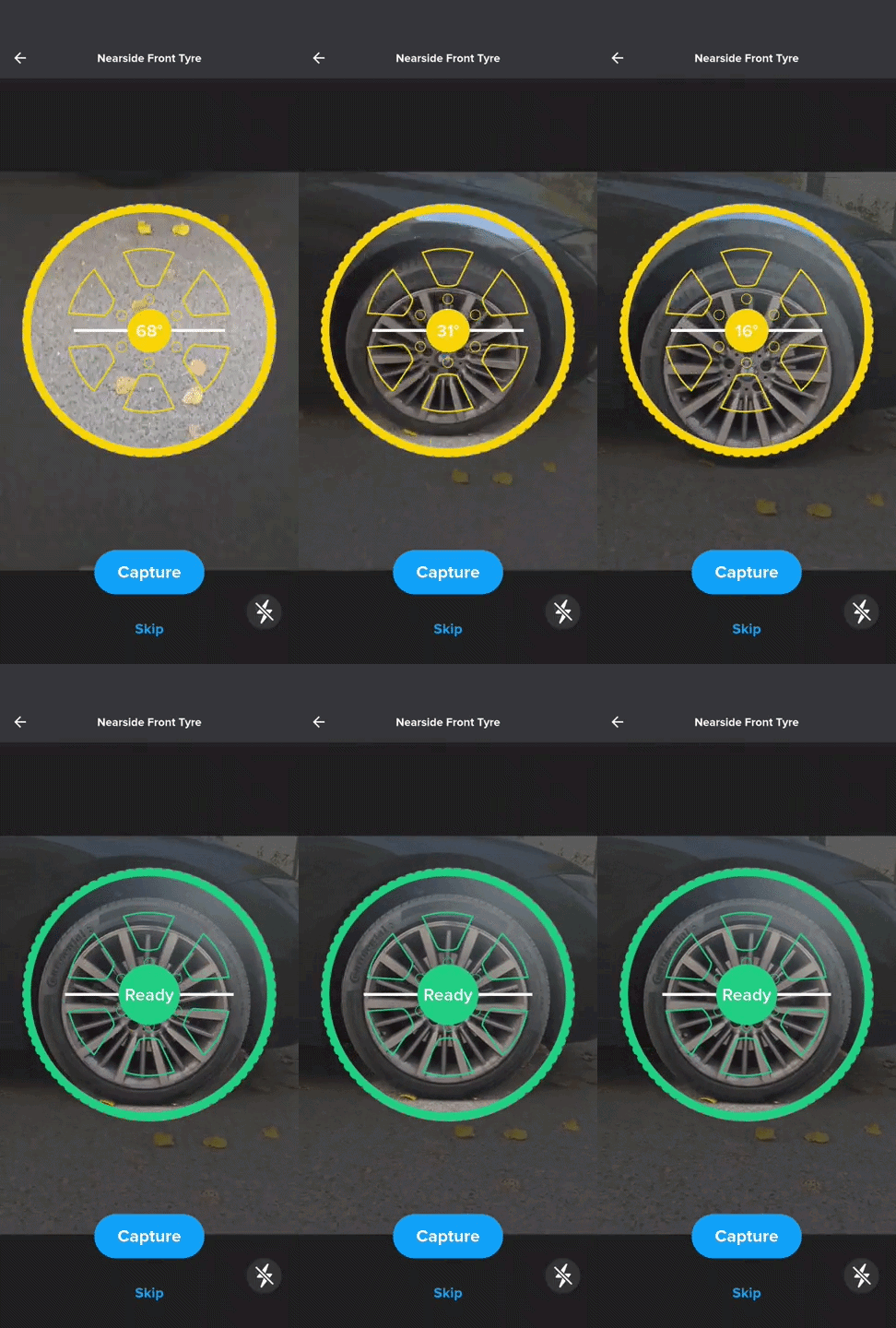
Tire Sidewall capture guidance with circular overlay and angle indicator
Reference capture flow. Example sidewall guidance with the circular overlay, angle feedback, and manual capture action.

On the capture screen

  • Use a dedicated camera screen with a circular overlay, angle indicator, flash control, and manual capture.
  • Keep accelerometer-based angle guidance so users align the phone before capture instead of relying on camera preview alone.
  • Validate the angle before allowing upload, and warn the user when the capture geometry is poor.

After capture

  • You can persist the captured image if it needs to be available later, for example for inspection history or local report generation.
  • For Cloud API image-upload requests, we recommend gzipping the JSON request body and sending Content-Encoding: gzip so large image payloads upload faster.

Apply camera implementation guardrails

These guardrails reduce the capture errors most teams see when sidewall guidance is too loose.

Camera setup

  • Use the platform's standard camera API. The Flutter reference app uses the camera plugin. Disable audio capture and initialise without it.
  • Open the back camera, request the highest available resolution preset, and fall back progressively (for example: maxultraHighveryHighhigh) if initialisation fails. Retry up to three times with a short backoff before surfacing an error.
  • Put a 10-second timeout on initialize() and a 5-second timeout on the "list available cameras" call. Unresponsive cameras should surface an error dialog and return the user to the previous screen, not hang the capture.
  • Immediately after initialize(), lock capture orientation to portrait. Do this on the camera controller itself, not just through system orientation preferences, so the preview and the cutout stay stable even if the device is rotated.

Preview rendering

  • Most native camera APIs, including the Flutter camera plugin, report preview dimensions in sensor (landscape) space. To avoid a stretched preview and a captured image that does not match what the user saw, render the preview inside a box with the reported width and height swapped, then scale to fit the screen width.
  • Keep auto focus and auto exposure on by default. A simple tap-anywhere gesture that re-asserts auto focus and auto exposure is enough; you do not need to convert tap coordinates into focus points.

Flash and error handling

  • Show a flash toggle, default off. Guard the toggle: if setFlashMode throws on a device that reports no torch, hide or disable the button rather than leaving the user in a broken state.
  • Report camera initialisation failures and sidewall scan exceptions to your crash reporter. On sidewall scan failure, re-show the onboarding cards the next time the user enters the capture screen so they are re-oriented on framing and angle before retrying.

Add tire-size scanning

  • Add the Tire Size scan config to the tire flow.
  • Default the Tire Size scanner to landscape orientation. The defaultOrientation property applies to cross platform plugin only. For native iOS and Android integrations, lock the screen to landscape orientation in your app code before starting this scanner.
  • Default the torch / flash to on for this scan.

Start from this tire-size config

Config snippet

Start from this DOT / TIN config

Universal default

Use Production date mode unless you have a specific business need to show or process the full DOT or TIN string.

Default the DOT / TIN scanner to landscape orientation. The defaultOrientation property applies to cross platform plugin only. For native iOS and Android integrations, lock the screen to landscape orientation in your app code before starting this scanner.

Default the torch / flash to on for this scan.

Config snippet

In most customer flows, production date is the only value that needs to be displayed. Reserve full DOT or TIN mode for cases where the complete string is required for a specific downstream workflow.

Advanced Map tire scan response fields

Map tire scan response fields

These mappings are useful if you want to label tire-identification values in your own result views.

DOT / TIN

Use the selected DOT mode

Label Response key Use when
DOT / TIN tinResult.resultPrettified Full DOT or TIN mode is active.
Production date tinResult.productionDate Production-date mode is active.

Show only the field that matches the selected mode. For most integrations, production date stays the default.

Tire size

Map the tire-size response

Label Response key Related values
Tire size tireSizeResult.prettifiedString.text Load: tireSizeResult.loadIndex.text
Speed: tireSizeResult.speedRating.text

Use the prettified tire-size string in the result UI and display load and speed as separate fields.

Full sidewall

Map the sidewall response fields

Label Response key Use in UI
Make make Fill the tire make field directly.
Model model Fill the tire model field directly.
Tire size size Reuse as the displayed tire size after validating the format.
Load index details.loadIndex Map to the display value shown in the app.
Speed rating details.speedRating Map to the display value shown in the app.
DOT / TIN dot Show this field when full DOT mode is selected.
Production date details.productionDateYearMonth Show this field when production-date mode is selected.

Derive load and speed display values from the returned raw fields and map them to region-appropriate units in the app.

Start from this load and speed mapping

Lookup example

If you display load and speed in your result UI, map the raw loadIndex and speedRating values to region-appropriate display units. The example below shows the same mapping pattern used in the app implementation.

Lookup example
{
  "loadIndexToDisplay": {
    "91": { "metric": "615 kg", "imperial": "1356 lb" },
    "95": { "metric": "690 kg", "imperial": "1520 lb" },
    "98": { "metric": "750 kg", "imperial": "1650 lb" },
    "100": { "metric": "800 kg", "imperial": "1800 lb" },
    "104": { "metric": "900 kg", "imperial": "2000 lb" },
    "109": { "metric": "1030 kg", "imperial": "2270 lb" },
    "120": { "metric": "1400 kg", "imperial": "3100 lb" }
  },
  "speedRatingToDisplay": {
    "Q": { "metric": "160 km/h", "imperial": "100 mph" },
    "S": { "metric": "180 km/h", "imperial": "112 mph" },
    "T": { "metric": "190 km/h", "imperial": "118 mph" },
    "H": { "metric": "210 km/h", "imperial": "130 mph" },
    "V": { "metric": "240 km/h", "imperial": "149 mph" },
    "W": { "metric": "270 km/h", "imperial": "168 mph" },
    "Y": { "metric": "300 km/h", "imperial": "186 mph" }
  }
}

Extend this starter with the full lookup set you support in your app so every returned load index and speed rating resolves to a clear display value.

Optional Optional Tire Sidewall onboarding assets and card copy

Optional Tire Sidewall onboarding assets and card copy

We recommend implementing a short onboarding flow before the first sidewall capture, using the reference assets and three-card structure provided below.

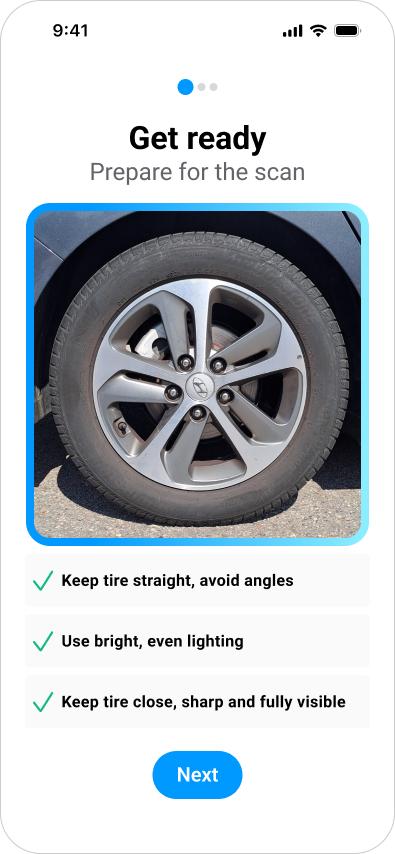
Tire Sidewall onboarding card 1 sample UI
Card 1 sample UI. Local example export for the “Get ready” onboarding card before sidewall capture starts.
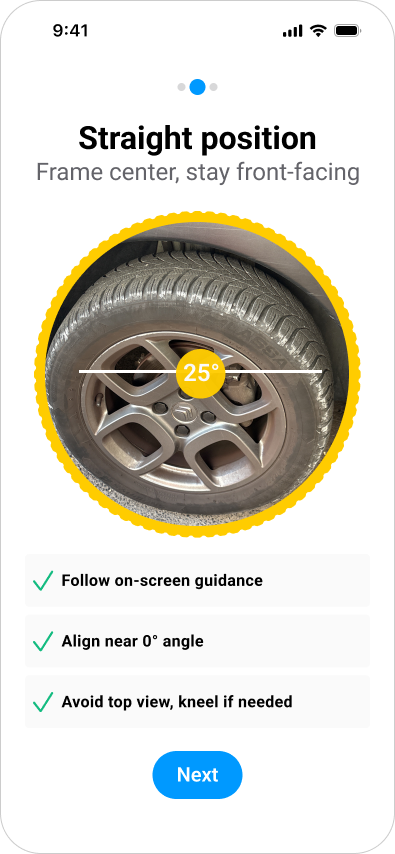
Tire Sidewall onboarding card 2 sample UI
Card 2 sample UI. Local example export for the “Straight position” card that introduces angle and framing guidance.
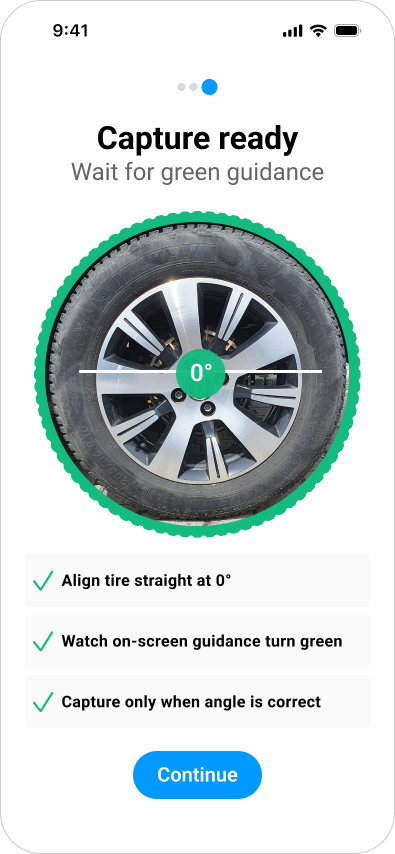
Tire Sidewall onboarding card 3 sample UI
Card 3 sample UI. Local example export for the “Capture ready” card before the user takes the photo.
Card 1

Get ready

Prepare for the scan

  • Keep the tire straight, avoid angles.
  • Use bright, even lighting.
  • Keep the tire close, sharp and fully visible.
Card 2

Straight position

Frame center, stay front facing

  • Follow on-screen guidance.
  • Align near 0° angle.
  • Avoid top view, kneel if needed.
Card 3

Capture ready

Wait for green guidance

  • Align tire straight at 0°.
  • Watch on-screen guidance turn green.
  • Capture only when angle is correct.
6
Tire Tread

Implement tire tread scan flow and async result handling

Important: On Android, the Tire Tread SDK needs a tire width. If your flow includes Tire Identification, pass the scanned width into the tread config to give users a seamless experience. Without it, the SDK falls back to a built-in width-selection sheet.

Core tire tread flow

1. Tire correlation ID

Create one tire-level correlationId and reuse that same identifier for the sidewall, DOT / TIN, Tire Tread, and Enrich flow of that tire.

2. Send tire tread additionalContext

Use additionalContext to carry the tire position for the Tire Tread measurement. Keep this separate from the tire correlation strategy.

3. Store the async tire tread handle

As soon as the SDK returns a measurementUUID, map it back to the same tire position so later async results update the correct wheel.

4. Retrieve the async tire tread result

Fetch the result by measurementUUID and apply it to the matching tire state instead of treating the scan response as the final tread payload.

5. Enrich that tire

After the tire scan data is ready, send the Enrich call with the same tire correlationId plus shared metadata such as shop, employee, and customerTransactionNumber.

Start by defining your tire tread configuration using the JSON schema

  • Set measurement-system so the scan flow, thresholds, editing UI, and any output all use the same unit system.
  • Set up the tire tread results config based on the use case: use the global result for most flows, and only show zone-level details when uneven wear needs to be highlighted.

Choose the tire tread result model for your use case

Use the global result for most flows.

Global value (recommended)

Default for most implementations. Uses a single overall tread-depth value calculated from all measurements across the tire.

  • Provides the most stable and representative result.
  • Best suited for customer-facing output and consistent reporting.
  • Recommended for the majority of use cases.
Zonal values (advanced)

Use for detailed inspection or uneven wear analysis.

  • Intended for technician workflows and diagnostic scenarios.
  • May be influenced by specific patterns or irregular wear distribution, and should be interpreted in context.
Lowest value

Uses only the lowest tread depth detected across all measurements. Use only if your product intentionally wants the worst-case indicator.

  • May be influenced by specific patterns or irregular wear distribution, and should be interpreted in context.

Handle async retrieval and tread scan errors

  • Store each returned measurementUUID immediately and map it back to the matching wheel position.
  • Fetch tread results asynchronously by measurementUUID and update the correct tire state when the result returns.
  • Map SDK error states into user-facing UI states and messages.
  • Preserve both scanned values and user-edited values.
Advanced Recommended error-message approach
Recommended approach

Use these mappings as the default pattern unless your product needs different support language, escalation rules, or recovery actions.

Scan error codes

Code UI title UI message
100 Processing error We encountered an issue analyzing your tire. Please repeat the measurement slowly. If the problem persists, contact our support team for assistance.
110 Poor image quality Try recording a bit longer or moving your device more slowly to capture clearer images.
111 Server error It looks like some tire images didn’t reach our server. Please ensure your internet connection is stable and try again.
150 Processing error We encountered an issue analyzing your tire. Please repeat the measurement slowly. If the problem persists, contact our support team for assistance.
1000 Setup error The tire scanner isn’t properly connected. Please restart the app and try again.
1001 Initialization failed The tire scanner could not start. Please check your setup and try again.
Any other code Unexpected error We’re sorry, something went wrong. Please try again or contact support.

Recommended implementation: show these messages inline for the affected tire and keep the recovery action explicit, for example Scan again.

Optional Optional tire tread onboarding assets and card copy

Optional tire tread onboarding assets and card copy

We recommend a guided onboarding before the first tread measurement, reuse the reference videos and structure provided below.

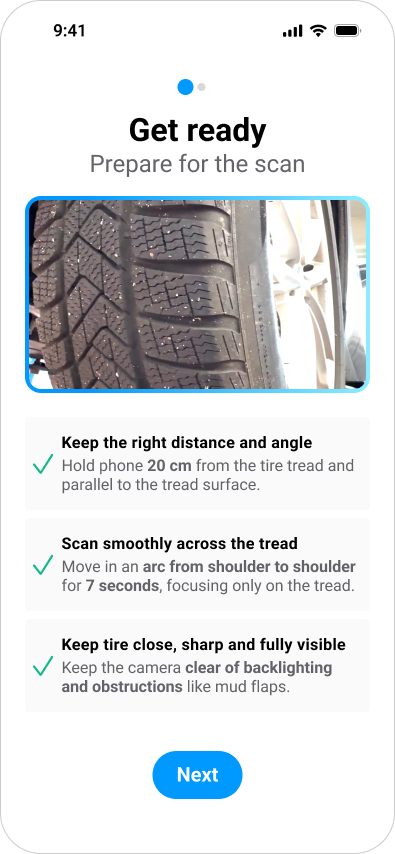
tire tread learning card sample UI
Learning-card sample UI. Local example export for the “Get ready” tread training card.
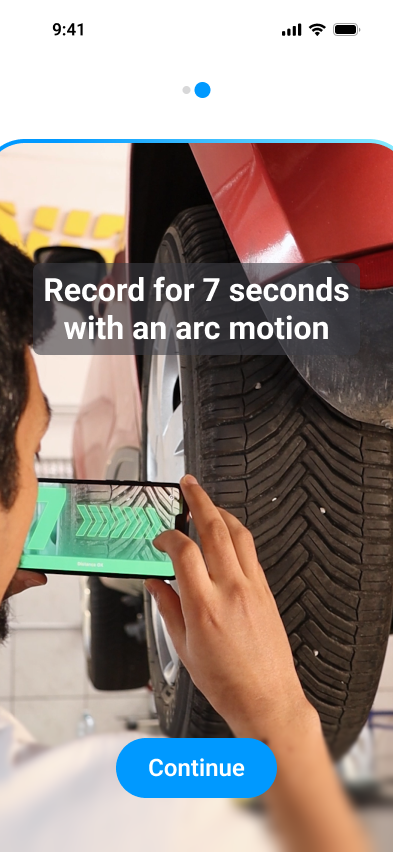
tire tread onboarding tutorial sample UI
Full-screen tutorial sample UI. Local example export for the full-screen prompt shown before tread capture starts.
Card 1

Get ready

Prepare for the scan

  • Keep the right distance and angle. Hold phone 20 cm from the tire tread and parallel to the tread surface.
  • Scan smoothly across the tread. Move in an arc from shoulder to shoulder for 7 seconds, focusing only on the tread.
  • Keep tire close, sharp and fully visible. Keep the camera clear of backlighting and obstructions like mud flaps.
Card 2

Capture prompt

Full-screen tutorial sample UI.

  • Record very slowly for 7 seconds.
7
Enrich and Reporting

Group inspection data and enrich with additional information

Send one Enrich API payload per vehicle and per tire

  • Send one Enrich API payload per vehicle and one per tire, including additional context such as tire position.
  • Keep the customerTransactionNumber stable across the full inspection flow.
  • Include any business metadata required by your reporting or backend systems, in addition to the inspection ID.
Correlation split
1 vehicle correlation ID for LPT, VIN, ODO, and BAR. 1 tire correlation ID per tire for TIN, Sidewall, tire tread, and Enrich.
Inspection correlation
Use your workflow, inspection, or session number as customerTransactionNumber.
Vehicle
LPT
+ Correlation ID "X"
VIN
+ Correlation ID "X"
Odometer
+ Correlation ID "X"
Barcode
+ Correlation ID "X"
Vehicle Enrich
Correlation ID "X"
businessInformation
customerTrx "T1"
shop ...
Tires
Front Left Tire
Correlation ID "A"
TIN
+ Correlation ID "A"
Sidewall
+ Correlation ID "A"
tire tread
+ Additional context
(tire position)
+ Correlation ID "A"
Enrich
Correlation ID "A"
businessInformation
customerTrx "T1"
shop ...
Front Right Tire
Correlation ID "B"
TIN
+ Correlation ID "B"
Sidewall
+ Correlation ID "B"
tire tread
+ Additional context
(tire position)
+ Correlation ID "B"
Enrich
Correlation ID "B"
businessInformation
customerTrx "T1"
shop ...
Rear Left Tire
Correlation ID "C"
TIN
+ Correlation ID "C"
Sidewall
+ Correlation ID "C"
tire tread
+ Additional context
(tire position)
+ Correlation ID "C"
Enrich
Correlation ID "C"
businessInformation
customerTrx "T1"
shop ...
Rear Right Tire
Correlation ID "D"
TIN
+ Correlation ID "D"
Sidewall
+ Correlation ID "D"
tire tread
+ Additional context
(tire position)
+ Correlation ID "D"
Enrich
Correlation ID "D"
businessInformation
customerTrx "T1"
shop ...

Include shop name, employee or technician identifier, your workflow, inspection, or session number, and inspection ID when available. Some partner payload fields may be contractually optional, but sending this context makes inspection traceability and support workflows significantly clearer.

Do not model this as one aggregate inspection payload with nested tires. The implementation flow is vehicle correlation on one side, per-tire correlation on the other side, and a shared inspection identifier carried through businessInformation.

Reference Enrich API payload schema Request body fields for application/json.

enriched (required, object)

Nested fields supported by the Enrich API.

businessInformation (required, object)

All provided fields will be updated. Fields not provided will not be updated.

Field Type Notes
customerTransactionNumber string Transaction number of your customer.
deviceId string ID of the device used for the scan event(s).
employeeId string ID of the employee associated with the scan event(s).
shopId string ID of the shop associated with the scan event(s).
shopName string Name of the shop associated with the scan event(s).
trailerNumber string Trailer associated with the scan event(s).
Scan event identifier, provide exactly one

Exactly one of the three fields below must be provided on each Enrich call to bind the payload to its scan event.

Field Type Notes
correlationId string correlationId associated with the scan event(s).
transactionId string transactionId associated with the scan event.
measurementUUID string measurementUUID associated with the scan event.
8
Optional Optimization

Optimize SDK size and enable user corrected results

SDK size reduction

  • Package only the Anyline modules your selected features actually use.
  • On Android, keep the required modules in the packaging configuration.
  • On iOS, remove unused Anyline modules from AnylineResources.bundle during build.

UCR handling

  • If corrected tread values differ from scanned values, decide whether to send corrected regions back to the SDK.
  • Optionally send user feedback text together with corrected-region feedback.
  • Confirm the exact trigger point in the UI for sending that feedback.
9
Final Checklist

Ensure key implementation steps have been followed

Implementation checklist

This checklist updates from the selected features and market.

0 of 0 complete

Frequent implementation pitfalls

  • Reusing one correlationId across all tires instead of generating one per tire.
  • Initializing the SDKs too late or more often than needed.
  • Not saving the measurementUUID before async tire tread result retrieval.
  • Treating region-specific configs as interchangeable.
  • Setting DOT / TIN to full mode instead of production date when the full string is not actually required.
  • Choosing a tread result mode that does not match product expectations.